📓 3.4.0.12 Adding Tickets to Firestore
Let's update our Help Queue to add new tickets directly to our Firestore database. Since Firestore data is saved in documents, which are grouped into collections, we'll need to create a tickets collection to hold individual ticket documents. To do this, we'll update the handleAddingNewTicketToList function in TicketControl.tsx and make use of two Firestore functions:
collection()allows us to specify a collection within our Firestore database.addDoc()allows us to add a new document to a Firestore collection.
We'll also refactor our Help Queue to let Firestore set each unique ticket id instead of generating one ourselves with crypto.randomUUID().
Adding Tickets to Firestore
The first thing we need in order to do anything with our database is access to our database instance, along with the Firestore functions we'll use to write to it. This means we need to import db from firebase.ts, plus collection and addDoc from the firebase/firestore library:
import { useState } from 'react';
import NewTicketForm from './NewTicketForm';
import TicketList from './TicketList';
import EditTicketForm from './EditTicketForm';
import TicketDetail from './TicketDetail';
import { type TicketData } from '../types';
import { db } from '../firebase';
import { collection, addDoc } from 'firebase/firestore';
Now that we have access to db, collection, and addDoc, we can format a POST request to Firestore. We'll follow the instructions in the Firestore docs on how to Add Data to a Firestore database.
Here's our updated handleAddingNewTicketToList function:
const handleAddingNewTicketToList = async (newTicketData: NewTicketData) => {
  await addDoc(collection(db, "tickets"), newTicketData);
  setFormVisibleOnPage(false);
}
Let's break down this new code:
- The process of accessing our Firestore database is asynchronous, so we use the
asyncandawaitkeywords:- We make our
handleAddingNewTicketToListfunction expressionasync, and - We
awaittheaddDoc()function call.
- We make our
- The
collection()function allows us to specify a collection within our Firestore database. This function takes two arguments: the Firestore database instance, and the name of our collection. This function returns aCollectionReferenceobject, which as its name suggests, is an object that acts as a reference to a collection within our Firestore database. - The
addDoc()function allows us to add a new document to a specified collection. This function takes two arguments: a collection reference and the data to be added to the new document.- Take note: the data that we add as the second argument must always be an object! Each object key and value will become the Firestore document's field and value. The image below is a representation of this transformation.

You may have noticed that the parameter is now typed as NewTicketData instead of TicketData. That's a new type, and we'll define it in a moment when we hand id generation over to Firestore.
Notice also what is no longer in this function. In React Fundamentals, handleAddingNewTicketToList built a new array with concat() and called setMainTicketList(). Now the ticket goes straight to the database, and the database becomes the single source of truth for our ticket list. In the next lesson we'll set up a listener that updates mainTicketList whenever Firestore changes, which means that until we do, submitting the form will save a ticket to Firestore without displaying it in the app. If you want to confirm your tickets are being saved before then, you can view them in the Firestore console.
Also, if it's easier to read and reason about, we can re-write the new code in handleAddingNewTicketToList to separate the collection() and addDoc() function calls onto multiple lines:
const handleAddingNewTicketToList = async (newTicketData: NewTicketData) => {
  const collectionRef = collection(db, "tickets");
  await addDoc(collectionRef, newTicketData);
  setFormVisibleOnPage(false);
}
So with that, are we done? Not quite! Let's review a few important notes about adding and removing Firestore collections, and then we'll re-configure our code to let Firestore apply the unique IDs for each ticket.
How it Works: Creating New Collections with collection()
It's important to note that the process of creating new collections is highly automated through the collection() helper function. This is how it works: when we create a new document and specify the name of a collection that we want to add the document to, Firestore will look in the database to see if a collection with the specified name exists, and if not, Firestore will simply create a new collection.
How it Works: Deleting Collections
The process of deleting a collection is also automated. Whenever we remove the last remaining document in a collection, Firestore will automatically delete that collection from the database.
If you want to remove a collection with many documents still inside of it from your code, you'll need to delete each document (and any subcollections) individually. Again, when all documents are deleted from a collection, Firestore will automatically delete that collection. So all of this is to say, there's no Firestore helper function that deletes an entire collection.
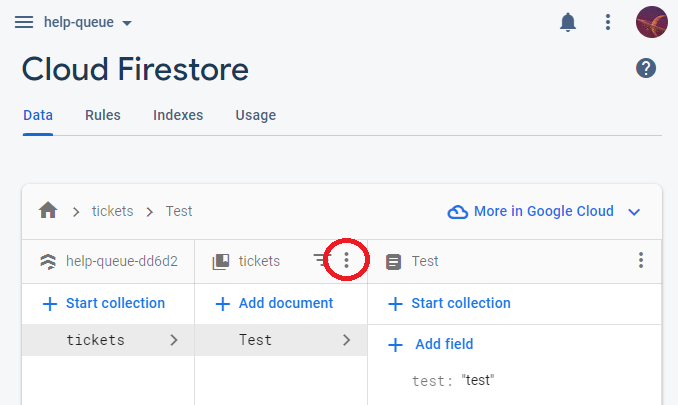
However, you can manually delete an entire collection from the Firebase console. If you want to do this, follow these steps:
- Open your Firestore database,
- Within the Data tab, click the three vertical dots next to the name of the collection. In the image below this is circled in red
- From the menu that pops up, click Delete collection.
Using Firestore Auto-Generated IDs
Instead of generating our own IDs with crypto.randomUUID(), we'll use IDs that are auto-generated by Firestore. Also, instead of saving the unique ticket ID as a property of each ticket object, we'll set it as the name of our Firestore document. Let's get into it!
We've actually already done most of the leg work to make this happen: the addDoc function doesn't have a location to specify the document's ID, so when we use it to add a new document, Firestore knows that it needs to auto-generate one for us.
A Type for Tickets That Don't Have an ID Yet
Here's where TypeScript asks us a useful question. Our TicketData type requires an id:
export type TicketData = {
  names: string;
  section: string;
  issue: string;
  id: string;
};
But the object we hand to addDoc() doesn't have an id yet, because Firestore is about to create one. If we keep typing that object as TicketData, TypeScript will correctly complain that the id property is missing.
What we need is a second type that describes a ticket before it reaches the database. Omit is the utility type for exactly this job. Add it to src/types.ts:
export type TicketData = {
  names: string;
  section: string;
  issue: string;
  id: string;
};

export type NewTicketData = Omit<TicketData, "id">;
Omit<TicketData, "id"> produces a type with all of TicketData's properties except id. Because it's derived from TicketData, the two types can never drift apart: if we add a field to TicketData later in this section, NewTicketData picks it up automatically.
This pattern of a "full" type and a "not saved yet" type comes up constantly once a database is involved. Anywhere a record's ID is assigned by the database rather than by our code, we need a way to talk about the record before that ID exists.
TicketControl needs both types now: TicketData for the mainTicketList and selectedTicket state variables, and NewTicketData for the parameter of handleAddingNewTicketToList. Update the import at the top of TicketControl.tsx:
import { type TicketData, type NewTicketData } from '../types';
Updating NewTicketForm
Now let's update NewTicketForm.tsx to stop generating an ID. We remove the id: crypto.randomUUID() line from the object we build, and we change the type of the onNewTicketCreation prop to accept a NewTicketData:
import { type SubmitEvent } from 'react';
import { type NewTicketData } from '../types';
import ReusableForm from './ReusableForm';

type NewTicketFormProps = {
  onNewTicketCreation: (ticket: NewTicketData) => void;
};

function NewTicketForm({ onNewTicketCreation }: NewTicketFormProps) {

  function handleNewTicketFormSubmission(event: SubmitEvent<HTMLFormElement>) {
    event.preventDefault();
    const formData = new FormData(event.currentTarget);
    onNewTicketCreation({
      names: formData.get('names') as string,
      section: formData.get('section') as string,
      issue: formData.get('issue') as string
      // id: crypto.randomUUID()  <-- Remove this line!
    });
  }

  return (
    <ReusableForm
      formSubmissionHandler={handleNewTicketFormSubmission}
      buttonText="Help!"
    />
  );
}

export default NewTicketForm;
What changed:
- We import
NewTicketDatainstead ofTicketData. onNewTicketCreationis now typed as(ticket: NewTicketData) => void.- The object we build no longer includes an
idproperty.
The form submission logic is otherwise untouched: we still call event.preventDefault(), still read the field values with FormData, and still call onNewTicketCreation() with the result.
This is a good example of types earning their keep. The prop type in NewTicketForm and the parameter type in TicketControl have to agree, so the moment we changed one, TypeScript pointed us at the other. If we had removed the id line and forgotten to update handleAddingNewTicketToList, we would have found out in the editor instead of debugging a Firestore document with a missing field.
Seeing the Auto-Generated ID
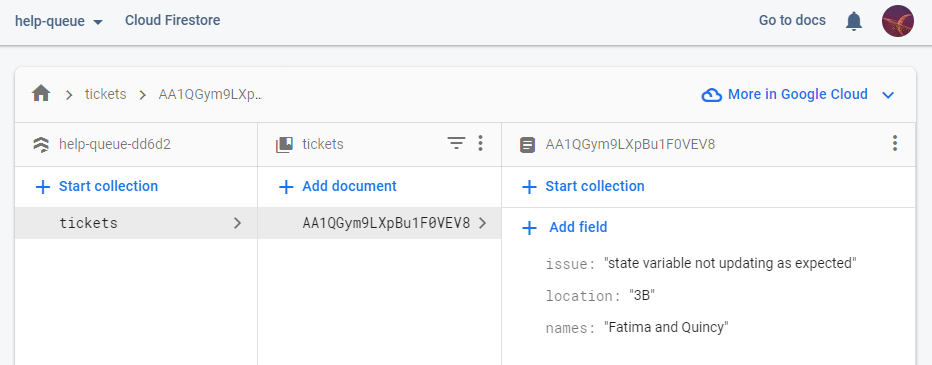
So where does this auto-generated ID appear? It gets added as the document's identifier. To understand this, let's add a new ticket to Firestore via our Help Queue app, and then inspect the newly created ticket in the online Firestore UI.
Go ahead and serve your Help Queue app and add a new ticket now. The ticket data that we'll use for this example has the following data:
- names: "Fatima and Quincy"
- section: "3B"
- issue: "state variable not updating as expected"
Now, navigate to the Firebase console, then open your Help Queue project, then select Firestore Database from the left-hand vertical menu. This will open the Firestore database UI from which we can inspect our database data. You should see something very similar to what's in the image below:
- The leftmost column lists our collections. Here we have our
ticketscollection listed. - The middle column lists the documents in the selected collection. As we can see, documents are listed by their ID. An ID can be any string, and we've used Firestore's auto-generated ID.
- The rightmost column lists the data from the selected document.
A Consideration When Using Random IDs
If you are using a random ID generator, whether it's crypto.randomUUID() or Firestore's, these IDs are typically not created to mark the order in which each document was created. What's more, Firestore lists the documents in a collection alphabetically by their ID (with numbers taking precedence over letters). That means that the order in which our list of tickets appear in our app can (and oftentimes does) change every time we add a new ticket to the list.
If the creation order of each document in a collection is important, there are two solutions to try out:
- Use a Firestore Server Timestamp to mark when a document was initially created, or updated. You can then use this timestamp to sort your documents by their creation time when you query the database.
- Create a custom function that generates unique IDs prefixed with a number that marks the order in which it was created.
We'll come back to the first option later in this section.
Adding a New Document Without a Firestore Auto-Generated ID
You may be wondering what our code would look like if we did not want Firestore to auto-generate an ID for us. Well, we'd need two new functions: setDoc() and doc(). This is what our code would look like:
import { setDoc, doc } from 'firebase/firestore';

const handleAddingNewTicketToList = async (newTicketData: NewTicketData) => {
  await setDoc(doc(db, "tickets", crypto.randomUUID()), newTicketData);
  setFormVisibleOnPage(false);
}
Let's break this down!
- The
doc()function allows us to reference a document in the Firestore database. Withdoc(), we can specify the location of a new document or the location of an existing document. A few notes:- The
doc()function takes 3 arguments: the database instance, the collection name, and the unique document identifier. In the above example, we've usedcrypto.randomUUID()to generate a unique ID. - The
doc()function returns aDocumentReferenceobject, which as its name suggests, is an object that acts as a reference to a document within our Firestore database.
- The
- The
setDoc()function is similar to theaddDoc()function: we can use it to add or update a specified document with the data that's passed in as its second argument.
In our Help Queue app, we won't use the above code, but instead let Firestore auto-generate unique IDs for us.
Up next, we'll learn how to read data from Firestore. In the process, we'll learn how to take Firestore's auto-generated ID and add it as a property to each ticket in our local mainTicketList so that we can continue to loop through the ticket list and display each ticket.