✏️ 1.1.1.3 Practice: GitHub Remote Repositories
Goal: Connect your local hello-world project to a GitHub repo, push your code, and practice cloning it back down.
Warm Up
Ask yourself the following questions before moving on:
- What is the difference between a local
.gitrepository and a repository on GitHub? - What does
git remote adddo, and why do we use our initials as the nickname? - What is a personal access token (PAT), and when does GitHub ask for one?
AI Support: Stuck on a push, authentication, or PAT error? After trying the steps below, you can ask AI to explain an error message in plain language—but never paste or ask AI to generate credentials. Do not ask AI to complete this exercise for you.
Example prompts:
- Weak: "Fix my git push."
- Strong: "I ran
git pushand got 'rejected non-fast-forward.' Can you explain what that means and what I should try first—without giving me the commands?"Before asking, check: Do I have the license for this? See Using AI Responsibly at Fidgetech and How to Ask for Help.
If you're stuck, you can ask AI to:
- Explain it simply — plain-language definition or analogy
- Help me debug — what to check next (not the fix)
- Break it into steps — one small next action
- Help me ask for support — draft a clear message for an instructor
Try asking AI: "What's the difference between
git remote addandgit clone? Can you explain when I'd use each—without running commands for me?"After reading AI's response, explain the concept back in your own words before moving on.
Important: Commands below use placeholders like
YOUR-GITHUB-USERNAMEandYOUR-INITIALS. Replace them with your own GitHub username and initials. Later in the course you'll clone starter repos from organizations like epicodus-lessons — but for this exercise, use the URL from your repo.
Our Hello World website lives on our machine in hello-world.html and is tracked by Git in a local .git repository. A remote repository is stored outside our device (on GitHub) so we can access our code from anywhere. Let's copy our local repository to GitHub now.
Creating a GitHub repository
First, we need to create the remote repository on GitHub. Each pair partner creates a remote repository using their own GitHub account.
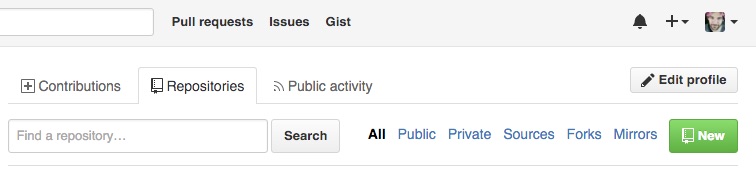
Once logged in, we'll select the New Repository or New button to go to the Create a new repository screen:
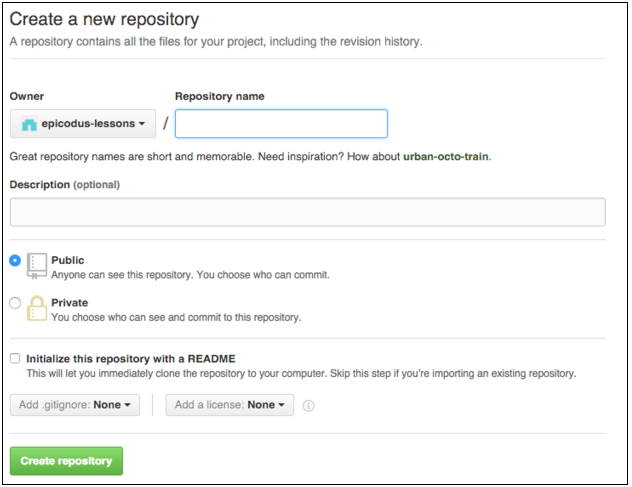
Let's walk through the options we need to complete for our new repository.
First, we enter the repository name that matches the name of our project directory. For this project, we'll enter "hello-world". Though the description is optional, it can be helpful to our future selves and anyone else looking at our repository to see a quick description of its content.
You can have public or private repositories. A public repository means that everyone can see the contents of the repository but as the owner of it, you will be the only person who can determine what code can be committed to it. A private repository is one that only you can see. We require that you set the repositories you create at Fidgetech to public so that your instructors can see your work and so you can show your journey as a developer through your code.
The last option asks whether or not to initialize the repository with a README. A README file is a detailed description of the repository including information like authors, usage instructions and licensing. Do not check this box. We will be exploring what a README is and how we add it to our repositories in a future lesson.
Copy your repository URL
After you click Create repository, GitHub shows your empty repo. Click the green Code button, select HTTPS, and copy the URL. It will look like:
https://github.com/YOUR-GITHUB-USERNAME/hello-world
For reference, a curriculum example repo might live at https://github.com/epicodus-lessons/hello-world — but your URL will use your GitHub username, not epicodus-lessons.
Pushing to GitHub
With an empty repository awaiting our code, we can push our local commits to GitHub. From your hello-world directory, confirm everything is committed:
$ git status
Then follow these steps:
- Add the remote (one time per project). Use your initials as the nickname — this keeps things clear when pair programming:
$ git remote add YOUR-INITIALS https://github.com/YOUR-GITHUB-USERNAME/hello-world
This command gives your remote a nickname (YOUR-INITIALS) and links it to your repo URL. A curriculum example repo might live at https://github.com/epicodus-lessons/hello-world — but your command must use the URL you copied from your GitHub account.
- Verify it worked:
$ git remote -v
You should see your URL listed for both fetch and push.
- Push your code:
$ git push YOUR-INITIALS main
main is the default branch name in Git. (It used to be called master; GitHub renamed it due to the racist connotations of that term, and we strongly support this shift.)
When you add a remote yourself, you choose the nickname (your initials). When you clone from GitHub later, Git automatically names the remote origin instead. Both are just nicknames for the remote repository.
For security reasons, only the owner of the remote GitHub repository is able to push code to it. You'll need to enter your GitHub username and a personal access token (PAT). To review PAT setup, see Creating and Using a Git PAT.
Once the push succeeds, refresh your repo page on GitHub — you should see hello-world.html and your commit history.
Cloning from GitHub
To get code from GitHub onto another machine, we clone the remote repository.
Optional practice: If you've already pushed successfully and can see your code on GitHub, try deleting your local copy and cloning it back. This simulates working on a second computer.
To delete a whole directory, we can't be in it — go up one level first:
$ cd ..
$ rm -rf hello-world
Now clone using the URL you copied from GitHub:
$ git clone https://github.com/YOUR-GITHUB-USERNAME/hello-world
$ cd hello-world
Public repos won't ask for credentials. Private repos will.
Run git log to confirm your commit history arrived. Run git remote and you'll see the remote is automatically nicknamed origin:
$ git remote
origin
Future pushes from a cloned repo use: git push origin main.
Note: only one location can be designated with the nickname "origin". So, if we clone one project but want to push to two different repositories, they cannot both be nicknamed "origin". That is another good reason to use your initials as the nickname of the remote repository.
Be sure that you are not cloning a project inside of an existing local repository. Don't run git clone from inside a project directory — otherwise you'll end up with one git repository inside of another.
Don't try to memorize all of this — use the cheat sheets as reference. Before you know it, it'll become part of your daily workflow.
Forking
If you're working with a pair, you might get a little jealous with all your co-authored code showing up on your pair's Github account. Don't worry, you can add the project to your account by forking the repository.
When you're done working on a project with your pair and you've made your last push to your pair's account, visit the repository on Github (e.g. https://github.com/YOUR-PAIRS-USERNAME/hello-world). In the upper right corner, click Fork. The image below shows what the Fork button should look like.

After GitHub does it's magic, you'll have a copy of the repo in your account.
Take note! If one of you makes a new commit and pushes it to your account, the change won't be reflected in the other one's account. You'll learn later how to keep your forked repositories in sync.
Copying a Project
Alternatively, if you want to have the project show up in your account as a repository and not as a fork, you can clone the project from your pair's account and then push it to your account. You'll need to remove the remote and add your own remote to do this. Here are the steps:
- Go to the account of the person that currently has the repository for the project. Clone the project to your desktop.
- Create a new project in your Github account. Then click the green "Clone or download" button and copy the link provided.
- Go to the top level of the project directory of the project you cloned (from your pair's repository) in the terminal.
- Check the remote repository with the command
git remote -v. You'll see something similar to the following code. The first word is the identifier for the remote repo, and the URL for the remote repo follows the identifier. In the following example, the identifier isorigin, but it might be the owner's initials or something else.
origin https://github.com/OWNER/REPOSITORY.git (fetch)origin https://github.com/OWNER/REPOSITORY.git (push)
- To remove a remote repo, enter the command
git remote rm <identifier>where<identifier>is the remote's identifier.
- If the identifier is
origin, then the command will begit remote rm origin. - If the identifier is
fpk, you'd dogit remote rm fpk. - Note that
rmis a Git command for "remove".
- Confirm that the remote has been removed by entering
git remote -vagain. Nothing should show up. That means the remote has been removed. If it hasn't been removed correctly, return to step 4. - Enter
git remote add origin [your-project-url-here]. You can use an identifier other thanorigin. Make sure that you put in the project URL that you copied from the repository you created in your account here. - You can confirm that the new remote is correctly linked with
git remote -v. - Once the remote is correctly linked to the repository in your account, you can push the code to your repository.
In order for your contributions to show up in Github (you'll learn more about Github contributions soon), you'll need to add any repositories where you have contributions to your account. Either forking or copying the project to your account will ensure that the project shows up in your Github contributions. They'll also be easily available for you to use and for others to see in your account. This is also helpful if you need access to a repository later — either because you want to work on it further or if you want to use it as a learning reference. If the original repository is deleted by your pair, you won't lose access as well.
Make sure you always fork or copy over projects you work on at the end of the day.
Checkpoint
Before moving on, you should be able to:
- Create a remote repository on GitHub and connect it with
git remote add - Push local commits to GitHub and verify them in the browser
- Clone a repository and explain why the remote is nicknamed
origin - Describe when you'd fork vs copy a pair partner's repository
If you're unsure, re-read the sections above or ask AI: "I ran git push and got 'rejected non-fast-forward.' Can you explain what that means and what I should try first—without giving me the commands?"