✏️ 1.1.1.2 Practice: Tracking Changes with Git
Goal: Create your first HTML file, track it with Git, and practice the add-commit workflow you'll use every day.
Warm Up
Ask yourself the following questions before moving on:
- What is the difference between saving a file in your editor and committing it with Git?
- What does
git adddo thatgit commitdoes not? - What information does
git statusgive you?
AI Support: Confused by
git statusoutput or staging errors? After trying the steps below, you can ask AI to explain what Git is telling you in plain language. You can ask AI to interpretgit statusoutput and clarify staging vs committing. Do not ask AI to write commit messages or complete this exercise for you.Example prompts:
- Weak: "Fix my git."
- Strong: "My
git statusshows a file in red under 'Untracked files.' Can you explain what 'untracked' means and what I should try first—without running commands for me?"Before asking, check: Do I have the license for this? See Using AI Responsibly at Fidgetech and How to Ask for Help.
Code
We have our project directory created and our Git repository initialized. Now, we can create the HTML file that will say hello to the world. Let's make an empty file at the command line in our project directory:
$ touch hello-world.html
Now, let's open our project directory in our text editor so that we can add some content to our empty HTML file.
$ code .
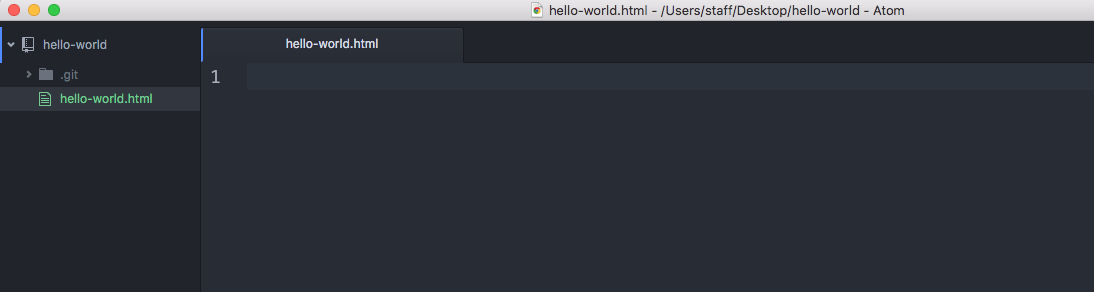
Here is our project directory in a text editor with the empty file open.
In the coming lessons, we are going to learn all about HTML but for now, copy and paste this text into your hello-world.html file into your text editor:
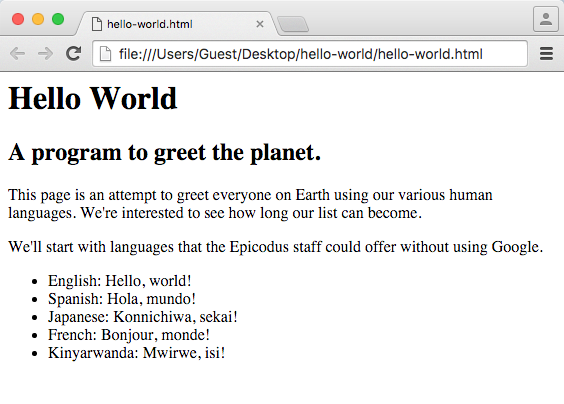
<h1> Hello World </h1>
<h2> A program to greet the planet. </h2>

<p>This page is an attempt to greet everyone on Earth using our various human languages.  We're interested to see how long our list can become.</p>

<p>We'll start with languages we know without using Google. </p>

<ul>
  <li> English: Hello, world! </li>
  <li> Spanish:  Hola, mundo! </li>
  <li> Japanese: Konnichiwa, sekai! </li>
  <li> French: Bonjour, monde! </li>
  <li> Kinyarwanda: Mwirwe, isi! </li>
</ul>
We save our file in our text editor and see the circle on the hello-world tab turn from a circle to an x. If we aren't sure if our changes have been saved, this is the indicator we can use to double check. No circle, changes saved.
We can view our HTML in the web browser by going to our Desktop GUI folder and double-clicking on hello-world.html.
Git tracking
Now, let's see what Git has done with our changes by running the command $ git status.
Note that you should have run the command $ git init in this directory in the last lesson. If you didn't, you'll get the following error:
fatal: not a git repository (or any of the parent directories): .git
Run $ git init if you get the error above!
Here's what we will see when we run $ git status:
$ git status
On branch main

Initial commit

Untracked files:
  (use "git add <file>..." to include in what will be committed)

	hello-world.html

nothing added to commit but untracked files present (use "git add" to track)
Try asking AI: "My
git statusshows a file under 'Untracked files.' Can you explain the difference between untracked, staged, and committed—without running commands for me?"After reading AI's response, explain staging back in your own words before moving on.
When we ask for the status, Git lets us know that there has been a new file added to our project directory but it is not being tracked because we haven't yet added it to the files for Git to track. Let's do this now using the command Git tells us to use: git add.
$ git add hello-world.html
Now when we run git status, we see that adding our new file told Git that these are changes to start tracking. Git lets us know we have a new file that exists, but has not been committed.
Initial commit

Changes to be committed:
  (use "git rm --cached <file>..." to unstage)

	new file:   hello-world.html
Making Git commits
A commit in Git is a way of saving changes to the permanent history of our project. Right now, our file is saved on our hard drive but it has not been committed to the historical log of the Hello World website. When we make a commit, it is a snapshot of our work exactly as it exists at that moment. Let's commit our work now to the project history
The command is $ git commit when working solo, or on a Windows machine:
$ git commit -m "add initial HTML file with 5 languages saying hello"
> git commit -m "add initial HTML file with 5 languages saying hello"
We use the git commit command followed by a succinct but descriptive message in " "after the -m. For consistency, the message should complete the sentence, "This commit will...". So, when looking at our commit we know that this commit will "add initial HTML file with 5 languages saying hello".
Let's look at our Git history now using the git log command:
$ git log

commit a9bf57dee7fb18b36900fd6f7b67bf12c84426ba
Author: Ada Lovelace and Enrique de la Fuente <ada+enrique@>
Date:   Tue Feb 23 11:29:00 2016 -0800

    add initial HTML file with 5 languages saying hello
Our initial commit has been assigned a unique identifier of numbers and letters, a9bf57dee7fb18b36900fd6f7b67bf12c84426ba. Forever more, if we want to see our HTML file as it exists right now, we can return to this unique commit.
Before we move on, we'll need to make a small change to our Git repository. Note that this may be confusing at first but it will become second nature.
If you followed all the configuration instructions in the Git Configurations lesson, you should be on the following branch when you run $ git status:
On branch main
If you are on the master branch instead, review the configuration lesson linked above to update the default. The default branch at Fidgetech is the main branch.
You can also manually change the branch from master to main in a project by running the following command:
git branch -M main
This will update the default branch from master to main. The -M flag denotes that we are updating this branch.
If we run $ git status again, we'll see that the problem has been addressed:
On branch main
A couple of staff members just shared additional entries for our list! Let's updates to our HTML file to include them (again, simply copy and paste this HTML for now):
<h1> Hello World </h1>
<h2> A program to greet the planet. </h2>

<p>This page is an attempt to greet everyone on Earth using our various human languages.  We're interested to see how long our list can become.</p>

<p>We'll start with languages we know without using Google.</p>

<ul>
  <li> English: Hello, world! </li>
  <li> Spanish:  Hola, mundo! </li>
  <li> Japanese: Konnichiwa, sekai! </li>
  <li> French: Bonjour, monde! </li>
  <li> Kinyarwanda: Mwirwe, isi! </li>
  <li> German: Guten tag, Welt! </li>
  <li> Pig Latin: ello-hay, orld-way! </li>
</ul>
After we save our updates in our text editor, let's look at what our git status displays:
On branch main
Changes not staged for commit:
  (use "git add <file>..." to update what will be committed)
  (use "git checkout -- <file>..." to discard changes in working directory)

	modified:   hello-world.html

no changes added to commit (use "git add" and/or "git commit -a")
It shows us that the hello-world.html file has been modified. If we would like to commit these changes to our project history, we can add and commit them now.
So, how do we know when we should make a commit and how it should look? Don't worry. We'll cover this in the next lesson!
Since we added a couple of additional lines to our HTML and are going to stop working on this code for a while, let's go ahead and add our file and commit our changes.
$ git add hello-world.html
$ git commit -m "add German and Pig Latin hellos"
Here is our project's history now:
$ git log

commit f7f936dea9c170288f96a48d7fe3dc6601b4407f
Author: Ada Lovelace and Enrique de la Fuente <ada@>
Date:   Tue Feb 23 12:16:21 2016 -0800

    add German and Pig Latin hellos

commit a9bf57dee7fb18b36900fd6f7b67bf12c84426ba
Author: Ada Lovelace and Enrique de la Fuente <ada+enrique@>
Date:   Tue Feb 23 11:29:00 2016 -0800

    add initial HTML file with 5 languages saying hello
As our project grows, we will be able to run git log to see how it has evolved from the beginning to its current state by reading each of our commit messages. The log also tells us the dates and authors of the code that was committed.
This may seem like more details than we want for a simple Hello World website but as we go you will see how using Git will make working on more complex tasks or in collaboration with a bigger team incredibly powerful for keeping code organized with each other and over time.
Let's take a final look at our website to see our changes.
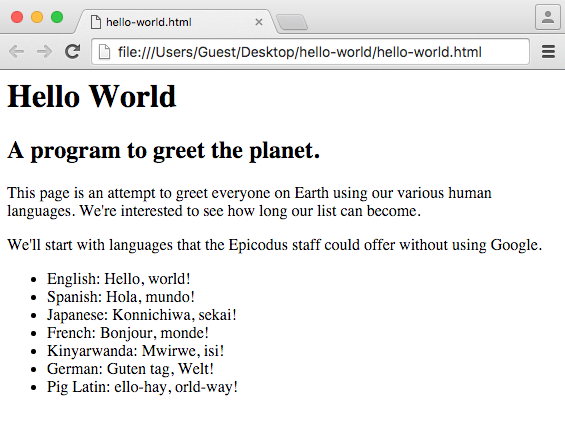
Hurray! Hello, World!
Checkpoint
Before moving on, you should be able to:
- Run
git statusand explain what untracked, staged, and modified mean - Add a file with
git addand commit it with a descriptive message - Use
git logto view your project's commit history
If you're unsure, re-read the sections above or ask AI: "My git status shows a file in red under 'Untracked files.' Can you explain what 'untracked' means and what I should try first—without running commands for me?"