📓 3.4.2.3 Hosting with Firebase
In addition to providing database and authentication functionality, Firebase also provides free hosting (at least for smaller sites). As a site scales up, Firebase services do have a cost. However, this is a great solution for smaller portfolio sites. If you do end up building a site that scales, that can be a good problem to have. Perhaps you have the beginnings of a start-up. If so, a cloud-based solution like Firebase will help with many of the headaches that scaling up can cause, ranging from efficient database queries to fast hosting.
In this lesson, we'll cover the steps necessary to host a site using Firebase. Fortunately, the Firebase CLI walks us through most of the work.
Start by installing the Firebase CLI globally:
$ npm install -g firebase-tools
Log In to Firebase via Command Line
To actually use the Firebase CLI, we need to log in with the following command in the terminal:
firebase login
This should prompt you to sign in via your Google account in the browser. In any case, make sure to provide the username and password you use to sign into the Firebase console.
We can verify we are connected by running the following command:
firebase projects:list
This will list out all of our Firebase projects.
Starting the Hosting Process
We'll continue to use the Help Queue as our example project to learn how to host with Firebase, so navigate to the root directory of your Help Queue project. To begin the hosting process, run the following command. This command should always be run in the root directory of the project you want to host.
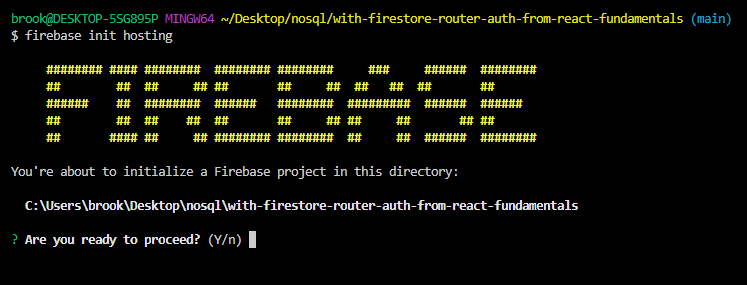
$ firebase init hosting
You'll be prompted with the question: You're about to initialize a Firebase project in this directory. Are you ready to proceed?. As a response, input Y into the command line.
Connecting To a Firebase Project
Next, we'll be prompted to select a Firebase project to connect our local repo to. This is the message we'll see in the terminal:
First, let's associate this project directory with a Firebase project. You can create multiple project aliases by running firebase use --add, but for now we'll just set up a default project.
Next, we'll be prompted to select a default Firebase project for our local project directory. You can select either a new or existing project. Since we're hosting our Help Queue app and we already have a Firebase project for it, we'll select Use an existing project.
Firebase will then list all of the Firebase projects that you have. This list should match all of the projects that you have created in the Firebase console. Select the project that you want to connect to. We'll choose the help-queue Firebase project in order to associate it with our local Help Queue project.
Configuring Project Hosting Details
Next, we'll be taken through a series of prompts for "Hosting Setup," which will configure our project's deployment details.
For the question What do you want to use as your public directory?, type in dist. (You can also just hit enter and change the configuration file later, which we'll discuss soon.)
Next, for the question Configure as a single-page app (rewrite all urls to /index.html)?, select Y. This one matters for our project. Our Help Queue uses React Router, which means routes like /sign-in exist only in our client-side JavaScript, not as files on the server. Answering Y tells Firebase to serve index.html for any URL it doesn't recognize, so our application loads and React Router can take over and render the right component. Without it, visiting the deployed /sign-in directly, or refreshing the page while on it, would return a 404.
Next, for the question Set up automatic builds and deploys with GitHub? (y/N), select N.
You may also be asked File dist/index.html already exists. Overwrite? (y/N). This prompt only appears if you've already run a build, so you may not see it at all. If you do see it, select N so that Firebase doesn't replace your built application with a placeholder page.
At this point, Firebase will automatically generate firebase.json and .firebaserc files for us. Then, we'll see a success message:
+ Firebase initialization complete!
firebase.json
Your firebase.json file should look similar to this one (but may not match exactly):
{
  "hosting": {
    "public": "dist",
    "ignore": [
      "firebase.json",
      "**/.*",
      "**/node_modules/**"
    ],
    "rewrites": [
      {
        "source": "**",
        "destination": "/index.html"
      }
    ]
  }
}
Note that "public" needs to have a value of "dist" because Vite puts all of our built assets in a dist directory. If it has a different value in your firebase.json, you should change it now. (This is the setting to reach for if you ever host a project built with a different tool, since not every build tool uses dist.)
The "rewrites" block is what our Y answer to the single-page app question produced. If you answered N by accident, you can add that block yourself rather than running firebase init hosting again.
Deploying
Next, we should create a build of our project to make sure there are no issues that need resolving in our project:
$ npm run build
Vite gives us a build script in package.json, defined as tsc -b && vite build. That means two things happen in order: TypeScript type-checks the whole project, and then Vite bundles it into dist. If there's a type error anywhere in our code, the build stops before any files are written, so a build that fails to produce a dist directory is worth reading the output of carefully.
Vite empties the dist directory each time it builds. If firebase init hosting created a placeholder index.html and 404.html in there, this build replaces them with our actual application. That's what we want.
We are almost ready to deploy. However, it's a good idea to make sure everything looks good before we deploy. We have two options for this.
The first is Vite's own preview server:
$ npm run preview
This serves the contents of dist locally so we can check the production build. Note that it doesn't know about our Firebase rewrites, so deep links like /sign-in may not resolve the way they will once deployed.
The second option uses the Firebase CLI, which does respect the configuration in firebase.json:
$ firebase serve
This will run our project at http://localhost:5000. Because it applies our rewrites, this is the better choice for confirming that our routes work. You can make sure that everything looks just as you expect, including navigating directly to localhost:5000/sign-in.
Once you are done, you can shut down the local server and deploy your project with this command:
$ firebase deploy --only hosting
You'll get output similar to this:
$ firebase deploy --only hosting

=== Deploying to 'help-queue-dc855'...

i  deploying hosting
i  hosting[help-queue-dc855]: beginning deploy...
i  hosting[help-queue-dc855]: found 15 files in dist
+  hosting[help-queue-dc855]: file upload complete
i  hosting[help-queue-dc855]: finalizing version...
+  hosting[help-queue-dc855]: version finalized
i  hosting[help-queue-dc855]: releasing new version...
+  hosting[help-queue-dc855]: release complete

+  Deploy complete!

Project Console: https://console.firebase.google.com/project/help-queue-dc855/overview
Hosting URL: https://help-queue-dc855.web.app
Firebase will deploy our project to the following subdomains:
PROJECT_ID.web.app
PROJECT_ID.firebaseapp.com
Where, PROJECT_ID is the name of your project. In the example code above, the name of the project is help-queue-dc855, so we'd be able to find our project at these locations:
https://help-queue-dc855.web.app/https://help-queue-dc855.firebaseapp.com/
Re-Deploying
If you need to make changes to your application and deploy again, follow these steps:
- Make the changes in your code.
- Run
npm run buildto type-check your project and create a build that's optimized for production. - Optionally, run
firebase serveto make sure your project works and looks as expected. - Run
firebase deploy --only hostingto deploy your project again.
Next Steps
If you want to access and configure other Firebase services from the command line, you can access these options with the following command:
$ firebase init
You'll see output similar to what follows:
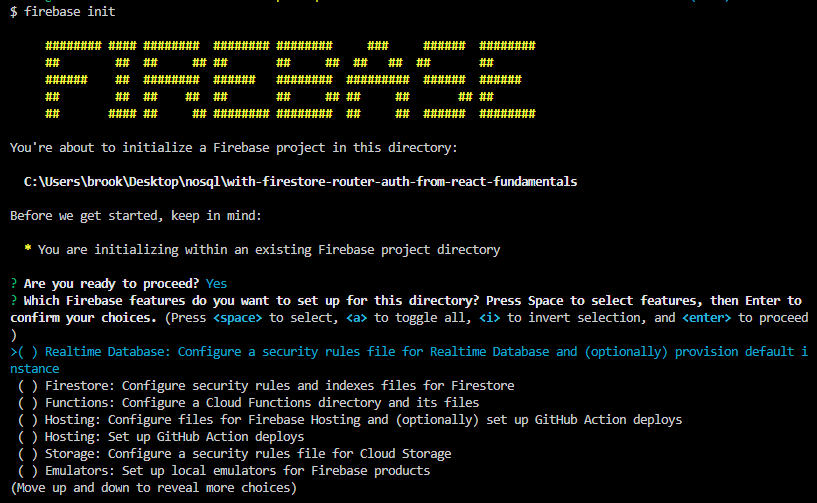
Generally you won't be configuring Firebase services via the command line until you learn exactly what is involved with the service you are implementing, so make sure to reference the docs on the Firebase CLI, as well as the general Firebase user guides for their product offerings.
Similarly, if you want to deploy another firebase service other than hosting, you would use another flag, or the deploy command without a flag:
$ firebase deploy
You may also want to add a custom domain for your hosted site, especially if this is a portfolio site. For more information on setting up your own domain, check out Firebase's custom domain documentation.
Finally, if your deployed site is connected to a database, it's highly recommended that you take a closer look at Firebase's security rules. Remember how the default rules that Firebase provides allow full read/write access for just thirty days? This is intentional. Having full read/write access while developing a site that no one else can access is fine. However, once the site is deployed, you'll need to update these security rules.