📓 3.4.1.4 Firebase Authentication
Let's imagine that we want to expand our Help Queue's functionality for students in an online program. We don't want people who aren't students to access the queue, so we'll make the queue accessible only if a user is signed in. Over the next couple of lessons, we'll add this functionality. In this lesson, we'll add Firebase authentication to our SignIn component. Then, in the next lesson, we'll add basic authorization so that only signed-in users can add tickets.
There are many, many ways to add Firebase authentication and authorization, ranging from doing everything from scratch (including creating custom hooks for authentication) to using small open-source libraries. In the world of React, the options can be a bit overwhelming.
The solution we'll use combines the following:
- Using the simplest implementation that the Firebase documentation offers;
- Avoiding adding additional libraries if they aren't needed (we won't add any).
Adding Firebase Authentication
Regardless of how we choose to incorporate Firebase authentication, we need to activate it in the Firebase console before we start adding it to our application.
Navigate to your Help Queue project in the Firebase console, expand the Build menu in the left-hand menu, and then click Authentication.
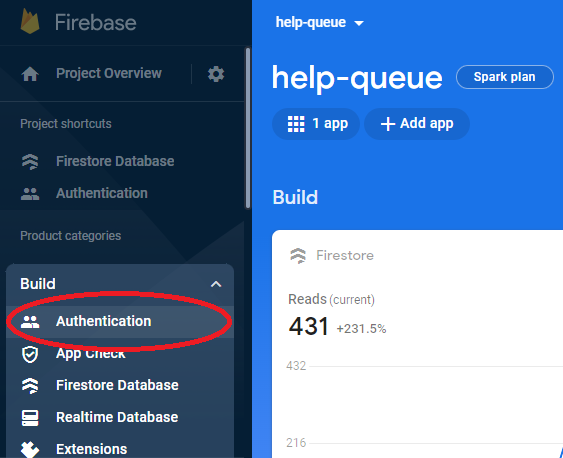
By default, authentication isn't enabled. So to get started, we'll click the Get started button. This will open to the Sign-in method tab within the authentication console.
We'll see quite a few different ways Firebase can authenticate users ranging from an email and password to sign in with Google, Facebook or GitHub. We'll use an email and password to have users sign in.
So, within the Sign-in providers section, select Email/Password. In the image below this is circled in red:
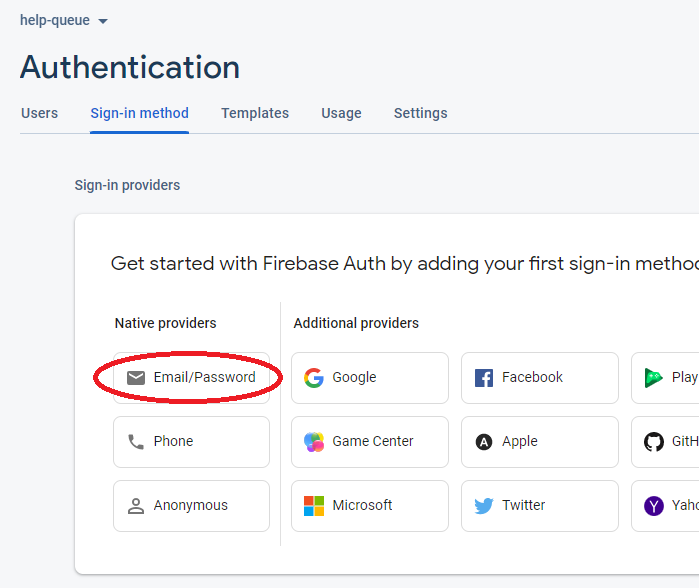
On the next screen make sure to enable the first option Email/Password. We're not going to work with an email link (a passwordless sign in), though you are welcome to explore that on your own time. Finally, click the Save button to save your selection and complete the setup process.
We'll now see Email/Password listed under a Sign-in providers section.
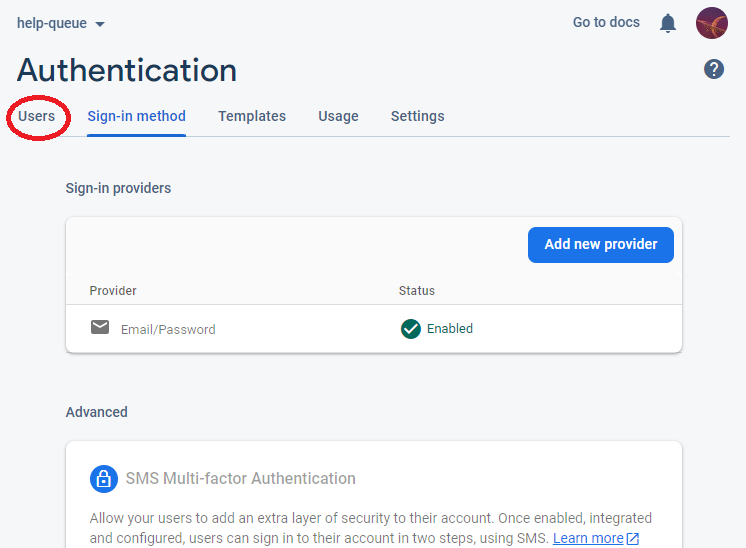
Note that there is a Users tab at the upper left corner of the screen. This is circled in red in the above image. If we click on this tab, we'll see there are no users yet. This is a great place to add admins manually for a smaller site so other users can't access that functionality via the browser. We won't add users manually right now but keep this in mind if you just want admins to access the UI of a site.
Accessing Authentication in our Source Code
Now that we've set up Firebase authentication in the Firebase console, we need to update our Firebase configuration to configure authentication locally. We'll do this with the getAuth() function.
Here's the updated code:
import { initializeApp, type FirebaseOptions } from 'firebase/app';
import { getFirestore } from 'firebase/firestore';
import { getAuth } from 'firebase/auth';

const firebaseConfig: FirebaseOptions = {
  apiKey: import.meta.env.VITE_FIREBASE_API_KEY,
  authDomain: import.meta.env.VITE_FIREBASE_AUTH_DOMAIN,
  projectId: import.meta.env.VITE_FIREBASE_PROJECT_ID,
  storageBucket: import.meta.env.VITE_FIREBASE_STORAGE_BUCKET,
  messagingSenderId: import.meta.env.VITE_FIREBASE_MESSAGING_SENDER_ID,
  appId: import.meta.env.VITE_FIREBASE_APP_ID
};

const app = initializeApp(firebaseConfig);

export const db = getFirestore(app);
export const auth = getAuth(app);
First we import the getAuth() function from 'firebase/auth'.
Notice that our firebaseConfig hasn't changed at all. Authentication uses the same Firebase web app we already configured, so there are no new environment variables to add to our .env file. The authDomain value we set up back when we added Firebase is the piece that authentication needs, and it's already there.
Similar to the getFirestore() function, getAuth() returns an Auth instance that's associated with our Firebase app. We export this instance directly as auth, a named export just like db. Later when we need to access authentication functions, we'll use this variable to reference the authentication that's associated with our Help Queue web app, and to get valuable information like the currently signed in user.
Now, we're ready to create sign up, sign in, and sign out forms. In the interest of keeping things focused, we'll add all of this functionality to the same component, SignIn.
Signing Up
Within the SignIn component, we'll start by creating a sign up form.
function SignIn() {

  return (
    <>
      <h1>Sign up</h1>
      <form onSubmit={doSignUp}>
        <input
          type='text'
          name='email'
          placeholder='Email' />
        <input
          type='password'
          name='password'
          placeholder='Password' />
        <button type='submit'>Sign up</button>
      </form>
    </>
  );
}

export default SignIn;
We create a form that will trigger a function called doSignUp() on submission. This form has two fields: email and password. (A password confirmation field would be nice but we are keeping this focused.) Note that the password field has a type attribute set to password so the characters won't be visible.
Now let's write the corresponding doSignUp() function. Here's the new code:
import { type SubmitEvent } from 'react';
import { auth } from '../firebase';
import { createUserWithEmailAndPassword } from 'firebase/auth';

function SignIn() {

  function doSignUp(event: SubmitEvent<HTMLFormElement>) {
    event.preventDefault();
    const formData = new FormData(event.currentTarget);
    const email = formData.get('email') as string;
    const password = formData.get('password') as string;
    createUserWithEmailAndPassword(auth, email, password)
      .then((userCredential) => {
        // User successfully signed up
      })
      .catch((error) => {
        // There was an error with sign up
      });
  }

  return (
    // ...same form JSX as above
  );
}

export default SignIn;
To sign up a new user, we need to import our Auth instance from firebase.ts and a function called createUserWithEmailAndPassword from firebase/auth, so we have two new import statements at the top of the file. We also import the SubmitEvent type from React so we can type our handler's parameter.
Then we have our doSignUp() function. This is the same form submission pattern we've been using since React Fundamentals:
- We type the parameter as
SubmitEvent<HTMLFormElement>, which tells TypeScript both what kind of event this is and what element it came from. - We call
event.preventDefault()to prevent the default behavior of submitting a form (a page reload). - We read the field values with
new FormData(event.currentTarget)andformData.get(). As always,.get()can returnnullif no field with that name exists, so we assert the values as strings withas string.
Next, Firebase authentication comes into play. Let's take a closer look at that code:
createUserWithEmailAndPassword(auth, email, password)
  .then((userCredential) => {
    // User successfully signed up
  })
  .catch((error) => {
    // There was an error with sign up
  });
The createUserWithEmailAndPassword() function takes three arguments: the auth instance, an email, and a password. It returns a promise, which means we can attach .then() to it to handle a successful response. We can also attach a .catch() to catch any errors.
Notice that we didn't need to annotate userCredential. Firebase ships its own type definitions, and because our callback is written inline as an argument to .then(), TypeScript works out its type for us. This is the same contextual typing we relied on with the onSnapshot() callbacks. Hover over userCredential in your editor and you'll see its full type.
In either case, we'll want to let the user know whether or not their sign up was successful, so let's use our useState hook to do just that.
Here's the updated code:
import { useState, type SubmitEvent } from 'react';
import { auth } from '../firebase';
import { createUserWithEmailAndPassword } from 'firebase/auth';

function SignIn() {
  const [signUpSuccess, setSignUpSuccess] = useState<string | null>(null);

  function doSignUp(event: SubmitEvent<HTMLFormElement>) {
    event.preventDefault();
    const formData = new FormData(event.currentTarget);
    const email = formData.get('email') as string;
    const password = formData.get('password') as string;
    createUserWithEmailAndPassword(auth, email, password)
      .then((userCredential) => {
        setSignUpSuccess(`You've successfully signed up, ${userCredential.user.email}!`);
      })
      .catch((error) => {
        setSignUpSuccess(`There was an error signing up: ${error.message}!`);
      });
  }

  return (
    <>
      <h1>Sign up</h1>
      {signUpSuccess}
      <form onSubmit={doSignUp}>
        <input
          type='text'
          name='email'
          placeholder='Email' />
        <input
          type='password'
          name='password'
          placeholder='Password' />
        <button type='submit'>Sign up</button>
      </form>
    </>
  );
}

export default SignIn;
With these updates we create a state variable called signUpSuccess that will deliver a message to the user when they sign up: a success message, or an error message. Its initial value is set to null so that it won't display unless a sign up event happens and there's a response (successful or not).
Note the explicit type argument on useState<string | null>(null). This is the same situation we ran into with our error state in TicketControl: an initial value of null doesn't tell TypeScript anything about what the state will eventually hold, so we spell out the union ourselves. Without it, TypeScript would decide this state can only ever be null and would reject our calls to setSignUpSuccess().
We've also made use of some helpful information from the userCredential parameter that's passed into the .then() on a successful sign up:
`You've successfully signed up, ${userCredential.user.email}!`
The userCredential parameter represents a Firebase UserCredential object. This object has a property called user, which represents the newly created user. In terms of Firebase object types this user is a User object that also extends functionality from the UserInfo class. That's why we can access information about the new user like their email!
If you hover over email in your editor, you'll notice it's typed string | null rather than string. Firebase allows for users created through providers that don't supply an email address. We're dropping the value straight into a template literal, which is fine either way, but it's a good habit to notice what a type is actually promising you.
Hover over the error parameter in our .catch() and you'll see it's typed any. That isn't Firebase being careless; it's a consequence of how JavaScript works. Any value at all can be thrown or used to reject a promise, including a string or a number, so the language can't make a narrower promise about what shows up here.
That means error.message is unchecked. If the rejection value turned out not to have a message property, we'd get undefined in our string rather than a compile error. For our purposes this is acceptable, since Firebase consistently rejects with an error object. But it's worth knowing that promise rejections and catch blocks are among the few places in our codebase where TypeScript steps back and trusts us.
At this point, we can run our application and sign up a new user. Try it out, and then check out the Users tab in the Authentication area within the Firebase console. You'll see that a new user has been added!
Signing In
The process looks very similar for signing in. To keep things focused, we'll place this functionality in the same component we've been using for auth. Here's the form:
// ...same imports as before

function SignIn() {
  // ...same state and doSignUp() function as before

  return (
    <>
      {/* Signup form lives here */}

      <h1>Sign In</h1>
      <form onSubmit={doSignIn}>
        <input
          type='text'
          name='email'
          placeholder='Email' />
        <input
          type='password'
          name='password'
          placeholder='Password' />
        <button type='submit'>Sign in</button>
      </form>
    </>
  );
}

export default SignIn;
It's almost exactly the same as our sign up form, just with a different heading, a different button, and a different submission handler.
Our two forms both have fields named email and password, and that's not a problem. new FormData(event.currentTarget) builds its data from a single form element: the one the handler is attached to. So when the sign in form is submitted, event.currentTarget is the sign in form, and formData.get('email') reads the sign in form's email field. The sign up form's fields aren't part of that FormData object at all.
This is one of the practical benefits of FormData over reaching into the DOM by id: field names only need to be unique within the form that contains them.
Next, let's create the doSignIn() function. We'll need to make use of a new function from firebase/auth, and we'll also create a new state variable to hold a success or error message for the sign in process.
// ...same imports as before, except:
import { createUserWithEmailAndPassword, signInWithEmailAndPassword } from 'firebase/auth';

function SignIn() {
  const [signUpSuccess, setSignUpSuccess] = useState<string | null>(null);
  const [signInSuccess, setSignInSuccess] = useState<string | null>(null);

  function doSignUp(event: SubmitEvent<HTMLFormElement>) {
    // ...same as before
  }

  function doSignIn(event: SubmitEvent<HTMLFormElement>) {
    event.preventDefault();
    const formData = new FormData(event.currentTarget);
    const email = formData.get('email') as string;
    const password = formData.get('password') as string;
    signInWithEmailAndPassword(auth, email, password)
      .then((userCredential) => {
        setSignInSuccess(`You've successfully signed in as ${userCredential.user.email}!`);
      })
      .catch((error) => {
        setSignInSuccess(`There was an error signing in: ${error.message}!`);
      });
  }

  return (
    <>
      {/* ...same as before */}

      <h1>Sign In</h1>
      {signInSuccess}
      <form onSubmit={doSignIn}>
        <input
          type='text'
          name='email'
          placeholder='Email' />
        <input
          type='password'
          name='password'
          placeholder='Password' />
        <button type='submit'>Sign in</button>
      </form>
    </>
  );
}

export default SignIn;
The new doSignIn() function looks very similar to the function we just created for signing up. The main difference is that we call signInWithEmailAndPassword() instead of createUserWithEmailAndPassword(), and we store the result message in signInSuccess.
Notice that both handlers have the same type signature: (event: SubmitEvent<HTMLFormElement>) => void. That's the shape of every form submission handler we write, which is why the ReusableForm component we built in React Fundamentals could describe its formSubmissionHandler prop with exactly that type.
Signing Out
Signing out doesn't even require a form. We just need a sign-out button in our JSX that triggers the signOut() function from firebase/auth.
Here's the updated code:
import { useState, type SubmitEvent } from 'react';
import { auth } from '../firebase';
import { createUserWithEmailAndPassword, signInWithEmailAndPassword, signOut } from 'firebase/auth';

function SignIn() {
  const [signUpSuccess, setSignUpSuccess] = useState<string | null>(null);
  const [signInSuccess, setSignInSuccess] = useState<string | null>(null);
  const [signOutSuccess, setSignOutSuccess] = useState<string | null>(null);

  function doSignUp(event: SubmitEvent<HTMLFormElement>) {
    // ...same as before
  }

  function doSignIn(event: SubmitEvent<HTMLFormElement>) {
    // ...same as before
  }

  function doSignOut() {
    signOut(auth)
      .then(() => {
        setSignOutSuccess("You have successfully signed out!");
      })
      .catch((error) => {
        setSignOutSuccess(`There was an error signing out: ${error.message}!`);
      });
  }

  return (
    <>
      {/* ...same as before */}

      <h1>Sign Out</h1>
      {signOutSuccess}
      <br />
      <button onClick={doSignOut}>Sign out</button>
    </>
  );
}

export default SignIn;
In the new code we do a few things:
- We import the
signOutfunction fromfirebase/auth. - We create a state variable called
signOutSuccessthat will hold the sign out success or failure message. - We create a
doSignOut()function that calls the FirebasesignOut()function.signOut()takes one argument: ourAuthinstance,auth, which contains all of the information of the currently signed in user that Firebase needs to sign that user out. - In the
returnstatement, we add a new "Sign Out" area that shows a button and thesignOutSuccessmessage.
Notice that doSignOut() takes no parameters at all. There's no form and no event data we need, so there's nothing to type. We pass it directly to onClick rather than wrapping it in an arrow function, the same way we passed onClickingEdit straight to a button back in React Fundamentals.
At this point, we can sign up, sign in, and sign out, but none of this is very helpful without authorization. We'll cover that in the next lesson.