📓 3.5.0.8 Help Queue: Planning and Setup for Context
In this lesson, we'll use React context in our Help Queue application to add a button that toggles between a light and dark theme. We'll need to do a few things to create this new functionality:
- Add a new button component that will toggle between styles.
- Determine which HTML elements need styling to create the light and dark theme.
- Create a set of styles.
- Determine where state should live in our application.
- Implement context and a state management tool to complete the toggle functionality.
We're going to complete all of the above in this lesson, except for the last bullet point. As such, we'll be focused on project setup and planning. Then, in the next two lessons we'll implement context.
By the end of this walkthrough the Help Queue app will look like this:
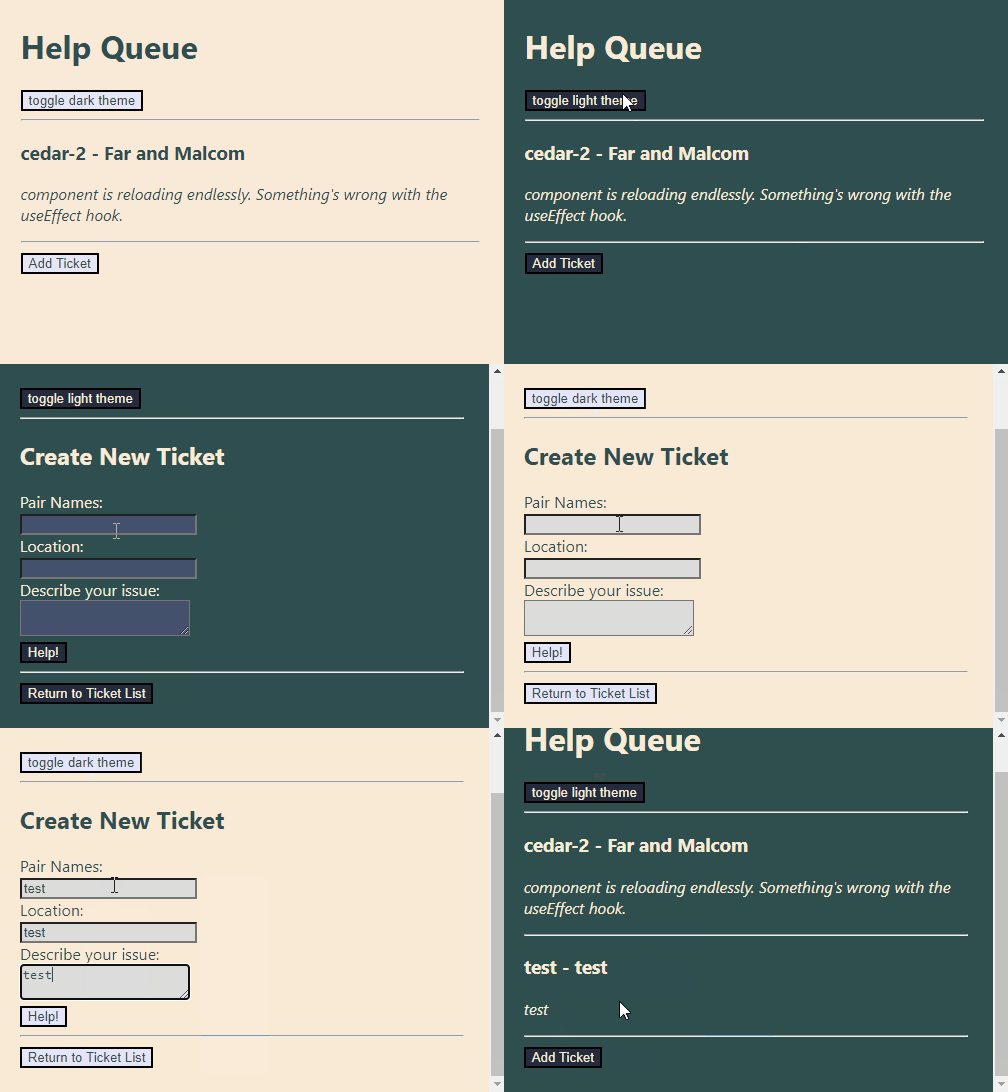
Project Setup and Planning
We'll keep building on the Help Queue we've been developing all along, picking it up exactly where we left it at the end of React with NoSQL: client-side routing with React Router, a SignIn component backed by Firebase authentication, and tickets stored in Firestore. The snippets in these lessons show that version of the app.
Everything we add in these lessons is about theming, though, so none of that has to be in place for the walkthrough to make sense. If your copy stores tickets in local state instead of Firestore, or if you'd rather work from the version you finished in React Fundamentals, the theming work is the same.
Every component in the project is a function component written in TypeScript, and that isn't going to change. TicketControl will still hold its state with useState(), and when we're ready to read theme data, we'll reach for a hook to do it.
Adding a ToggleTheme Component
The first thing we'll do is add a new component that has a button in it that toggles our light and dark theme. We'll call our new component ToggleTheme.tsx.
function ToggleTheme() {
  return (
    <>
      <button>Toggle Theme</button>
      <hr />
    </>
  );
}

export default ToggleTheme;
There's not much going on in this component now. Just the basics of what we want our UI to look like. It takes no props yet, so there's no props type to write. Later on, we'll add state to make the toggling functionality work.
Next, let's update App.tsx to import and render the new ToggleTheme component. As a reminder, here's where App stands at the end of React with NoSQL:
import Header from "./Header";
import TicketControl from "./TicketControl";
import SignIn from "./SignIn";
import { BrowserRouter as Router, Routes, Route } from "react-router-dom";

function App() {
  return (
    <Router>
      <Header />
      <Routes>
        <Route path="/sign-in" element={<SignIn />} />
        <Route path="/" element={<TicketControl />} />
      </Routes>
    </Router>
  );
}

export default App;
Our toggle button should be available no matter which route we're on, just like our Header. That means <ToggleTheme /> goes inside <Router> but outside <Routes>:
import Header from "./Header";
import TicketControl from "./TicketControl";
import SignIn from "./SignIn";
import ToggleTheme from "./ToggleTheme";
import { BrowserRouter as Router, Routes, Route } from "react-router-dom";

function App() {
  return (
    <Router>
      <Header />
      <ToggleTheme />
      <Routes>
        <Route path="/sign-in" element={<SignIn />} />
        <Route path="/" element={<TicketControl />} />
      </Routes>
    </Router>
  );
}

export default App;
After this update, this is what our Help Queue component tree should now look like:
App
└── Router
    ├── Header
    ├── ToggleTheme
    └── Routes
        ├── SignIn
        └── TicketControl
            ├── TicketList
            │   └── Ticket (one for each ticket)
            ├── NewTicketForm
            │   └── ReusableForm
            ├── TicketDetail
            └── EditTicketForm
                └── ReusableForm
Notice that <Routes> renders only one of its two routes at a time, depending on the URL. So on any given page load, either SignIn or TicketControl is on screen, never both.
Determining Which Elements Need Styling
If we want to create a light/dark theme, we'll need to update the color of the text and the background color. We can handle both of those by changing the CSS on our HTML's <body> tags to target all of its descendants. However, doing so will not change the color of buttons or form inputs, so we'll have to target those elements individually.
So, the first question we need to answer is where our buttons and inputs are! We'll scope this walkthrough to four components:
TicketControl.tsx: one<button>element.ToggleTheme.tsx: one<button>element.TicketDetail.tsx: two<button>elements.ReusableForm.tsx: one<button>element, two<input>elements, and one<textarea>input.
Here's where those four components sit in the tree:
App
└── Router
    ├── Header
    ├── ToggleTheme           <button>
    └── Routes
        ├── SignIn
        └── TicketControl     <button>
            ├── TicketList
            │   └── Ticket
            ├── NewTicketForm
            │   └── ReusableForm  <input> <input> <textarea> <button>
            ├── TicketDetail      <button> <button>
            └── EditTicketForm
                └── ReusableForm  <input> <input> <textarea> <button>
You may have noticed a fifth component with form elements in it: SignIn has inputs and buttons of its own for signing up, signing in, and signing out. We're leaving it out of this walkthrough to keep our focus on context rather than on styling every last element. Once you've seen how the other four components read the theme, theming SignIn works exactly the same way, and it makes a good exercise to do on your own afterward.
It's also worth saying up front what doesn't have to change: Router, Routes, and the <Route> components themselves. Context has nothing to do with routing. Our provider will simply wrap the routing structure we already have, and every component beneath it, routed or not, will be able to reach the theme data.
This means that we'll need to make sure that the four components listed above have access to the light and dark style themes we create. Let's create those next!
Light and Dark Styles
We'll use a JavaScript object to declare our light and dark styles, which makes it easier to switch between them. Here are the styles we'll use:
const themes = {
  light: {
    name: "light",
    backgroundColor: "AntiqueWhite",
    textColor: "DarkSlateGrey",
    buttonBackground: "Lavender",
    inputBackground: "Gainsboro"
  },
  dark: {
    name: "dark",
    backgroundColor: "DarkSlateGrey",
    textColor: "AntiqueWhite",
    buttonBackground: "#232b3c",
    inputBackground: "#45516d"
  }
};
You're welcome to pick your own colors instead!
Notice that each theme carries a name property along with its colors. That gives any component holding a theme a direct way to ask "which theme is this?" without comparing color strings to each other. We'll use it to decide what our toggle button should say. In the next lesson, we'll give this object a TypeScript type so that every theme is guaranteed to have the same set of properties.
Planning Our Theme State
Next up, we need to plan out where the theme state will live. The work we just did makes this straightforward, because we already know which components have button and input elements that need a theme applied to them: TicketControl, ToggleTheme, TicketDetail, and ReusableForm.
Our next step is to lift state up to the nearest ancestor that all of these components share, so that state can be shared between all of them. Looking at our component tree, that's App. ToggleTheme sits directly inside it, and TicketControl sits inside it too, a couple of levels down through Router and Routes.
So, our shared state will live in App, and our provider will wrap everything App renders, router included. Next, we need to pick our tool to manage state and share it within our app. We'll use the useState() hook to manage the theme state, and we'll use context to share that state within our app.
As far as a state management tool, useReducer() is a fine alternative, and it depends on what you prefer and what you want to practice. To review the tradeoffs and benefits of the useReducer() hook, visit the lesson The useReducer Hook.
As far as sharing state between components, the best choice here would actually be props, because our application is small and we're not facing cumbersome prop drilling. We could also rethink how we're composing our components to make the small amount of prop drilling more manageable. We'll explore these topics more in an upcoming lesson. For now, we'll continue with using context to transmit shared data in order to get the hang of using it. That's the goal after all.