📓 3.3.3.8 Updating a Ticket
In this lesson, we'll add the final piece of CRUD functionality to our Help Queue: the ability to update a ticket.
Planning the Component Structure
Before we start coding, let's think about where EditTicketForm should live. We'll make it a direct child of TicketControl:
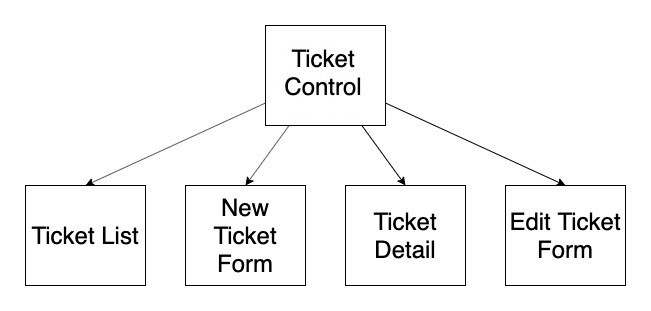
Why this placement?
TicketControlalready manages stateTicketControlalready handles conditional rendering- Props only need to be passed down one level to
EditTicketForm
This isn't the only valid approach, but it's straightforward and builds on patterns we've already established.
The Two Behaviors We Need
Let's think about this from the user's perspective:
Behavior 1: Navigate to the edit form
When viewing a ticket's details, clicking "Update Ticket" shows an edit form.
Behavior 2: Submit the edit
When the edit form is submitted, the ticket updates and the user returns to the ticket list.
We'll implement these one at a time.
Behavior 1: Toggle the Edit Form
Our Roadmap
- Add an
editingstate variable toTicketControl - Add a
handleEditClickfunction toTicketControl - Pass
handleEditClicktoTicketDetailas a prop - Add an "Update" button to
TicketDetail - Create a placeholder component to represent the edit form
- Update conditional rendering in
TicketControlto show the edit form
Step 1: Add the editing State Variable
Add a new state variable to track whether we're in "edit mode":
const [formVisibleOnPage, setFormVisibleOnPage] = useState(false);
const [mainTicketList, setMainTicketList] = useState<TicketData[]>([]);
const [selectedTicket, setSelectedTicket] = useState<TicketData | null>(null);
const [editing, setEditing] = useState(false);
We initialize editing to false because we don't want to show the edit form until the user goes to update a ticket.
Notice that this new state variable doesn't need an explicit type. TypeScript infers boolean from the initial value of false, just like it did for formVisibleOnPage. The other two still need their generics because an empty array and null don't tell TypeScript enough on their own.
Step 2: Write the handleEditClick Function
Add a handleEditClick function to TicketControl to handle when the user clicks "Update Ticket". This function simply flips editing to true:
const handleEditClick = () => {
  setEditing(true);
};
This function takes no arguments, so there's nothing to type here.
Step 3: Pass handleEditClick to TicketDetail
Update the conditional rendering in TicketControl to pass our new handleEditClick function as a prop to TicketDetail so that TicketDetail can call it when the user clicks the "Update Ticket" button:
if (selectedTicket !== null) {
  currentlyVisibleState = (
    <TicketDetail
      ticket={selectedTicket}
      onClickingDelete={handleDeleteTicket}
      onClickingEdit={handleEditClick}
    />
  );
  buttonText = "Return to Ticket List";
}
Step 4: Add an "Update" Button to TicketDetail
Now update TicketDetail to use the new prop:
import { type TicketData } from '../types';

type TicketDetailProps = {
  ticket: TicketData;
  onClickingDelete: (id: string) => void;
  onClickingEdit: () => void;
};

function TicketDetail({ ticket, onClickingDelete, onClickingEdit }: TicketDetailProps) {
  return (
    <>
      <h1>Ticket Detail</h1>
      <h3>{ticket.section} - {ticket.names}</h3>
      <p><em>{ticket.issue}</em></p>
      <button onClick={onClickingEdit}>Update Ticket</button>
      <button onClick={() => onClickingDelete(ticket.id)}>Close Ticket</button>
      <hr />
    </>
  );
}

export default TicketDetail;
What changed:
- We added
onClickingEdit: () => voidtoTicketDetailProps, alongsideticketandonClickingDelete. The empty parentheses mean this function takes no arguments, andvoidmeans it doesn't return anything - We destructured
onClickingEditin the function signature - We added an "Update Ticket" button that calls
onClickingEditwhen clicked
onClickingEdit doesn't need an arrow function wrapper because we're not passing any arguments. So we can just write onClick={onClickingEdit}.
At this point, clicking "Update Ticket" will set editing to true. You can verify this in React DevTools.
Step 5: Create the EditTicketForm Component
Create a new file EditTicketForm.tsx in the src/components directory. For now, we'll just make it a placeholder that uses our existing ReusableForm component:
import { type SubmitEvent } from 'react';
import ReusableForm from './ReusableForm';

function EditTicketForm() {
  function handleEditTicketFormSubmission(event: SubmitEvent<HTMLFormElement>) {
    event.preventDefault();
  }

  return (
    <ReusableForm
      formSubmissionHandler={handleEditTicketFormSubmission}
      buttonText="Update Ticket"
    />
  );
}

export default EditTicketForm;
The handler doesn't do anything useful yet - it just prevents the default form submission. We'll replace it in Behavior 2.
You might wonder why a placeholder needs a handler at all. It's because ReusableFormProps lists formSubmissionHandler as a required prop. TypeScript won't let us render ReusableForm without it, even temporarily. This is a small example of types keeping us honest: the compiler knows the component contract before we ever load the page.
Step 6: Add Conditional Rendering for the Edit Form
First, add an import for EditTicketForm at the top of TicketControl, alongside the other component imports:
import EditTicketForm from './EditTicketForm';
Then add a new conditional at the top of the rendering logic, so that when editing is true, we show the EditTicketForm:
// ... inside TicketControl function

let currentlyVisibleState;
let buttonText;

if (editing) {
  currentlyVisibleState = <EditTicketForm />;
  buttonText = "Return to Ticket List";
} else if (selectedTicket !== null) {
  currentlyVisibleState = (
    <TicketDetail
      ticket={selectedTicket}
      onClickingDelete={handleDeleteTicket}
      onClickingEdit={handleEditClick}
    />
  );
  buttonText = "Return to Ticket List";
} else if (formVisibleOnPage) {
  // ... rest of conditionals
}
Our placeholder accepts no props, so we render it with none. We'll pass ticket and the edit handler in Behavior 2 once EditTicketForm is ready for them.
Why check editing first? When editing, both editing is true AND selectedTicket is not null. We need to check editing first so we show the form instead of the detail view.
Test it! You should be able to:
- Click a ticket to see its details
- Click "Update Ticket" to see the edit form
- Click "Return to Ticket List" to go back
The form won't actually update anything yet; that's Behavior 2.
Behavior 2: Editing a Ticket
Now let's make the form actually work.
Our Roadmap
- Write
handleEditTicketinTicketControl - Pass it to
EditTicketForm - Add form submission handling to
EditTicketForm - Pre-fill the form with the ticket's current values
Step 1: Write the handleEditTicket Function
Add a handleEditTicket function in TicketControl. This handler needs to:
- Replace the old ticket with the edited one
- Clear
selectedTicketandeditingto return to the list
const handleEditTicket = (ticketToEdit: TicketData) => {
  const editedTicketList = mainTicketList.map(ticket =>
    ticket.id === ticketToEdit.id ? ticketToEdit : ticket
  );
  setMainTicketList(editedTicketList);
  setEditing(false);
  setSelectedTicket(null);
};
Breaking this down:
map() goes through every ticket in the list. If the ticket's id matches ticketToEdit.id, we swap it out for ticketToEdit. Otherwise we keep the original. The result is a new array with the updated ticket in the same position — we never mutate state directly.
The ticketToEdit parameter is typed as TicketData, so TypeScript knows it has an id to compare against. We compare against ticketToEdit.id rather than selectedTicket.id because selectedTicket is typed TicketData | null, and TypeScript would refuse to read .id off a value that might be null.
Step 2: Pass the Function to EditTicketForm
Update the conditional in TicketControl to pass our new function to EditTicketForm:
if (editing && selectedTicket !== null) {
  currentlyVisibleState = (
    <EditTicketForm
      ticket={selectedTicket}
      onEditTicket={handleEditTicket}
    />
  );
  buttonText = "Return to Ticket List";
}
Notice we now check editing && selectedTicket !== null instead of just editing. EditTicketForm is about to require a real ticket, and selectedTicket is typed TicketData | null. Checking for null in the condition lets TypeScript narrow the value to TicketData inside the block, which is exactly what the prop needs. Without that check, TypeScript would flag the ticket={selectedTicket} line as an error.
Step 3: Complete the EditTicketForm Component
Now we add the form submission logic:
import { type SubmitEvent } from 'react';
import { type TicketData } from '../types';
import ReusableForm from './ReusableForm';

type EditTicketFormProps = {
  ticket: TicketData;
  onEditTicket: (ticket: TicketData) => void;
};

function EditTicketForm({ ticket, onEditTicket }: EditTicketFormProps) {

  function handleEditTicketFormSubmission(event: SubmitEvent<HTMLFormElement>) {
    event.preventDefault();
    const formData = new FormData(event.currentTarget);
    onEditTicket({
      names: formData.get('names') as string,
      section: formData.get('section') as string,
      issue: formData.get('issue') as string,
      id: ticket.id
    });
  }

  return (
    <ReusableForm
      formSubmissionHandler={handleEditTicketFormSubmission}
      buttonText="Update Ticket"
    />
  );
}

export default EditTicketForm;
Walking through this:
- We define
EditTicketFormPropswith the two props this component now needs. Our placeholder didn't need any, but now we're working with actual data - We destructure
ticketandonEditTicketin the function signature handleEditTicketFormSubmissiondoes three things:- Prevents the default form submission behavior
- Builds a ticket object from the form values using
FormData, the same approach we used inNewTicketForm - Calls
onEditTicket(which is reallyhandleEditTicketinTicketControl)
- We pass
handleEditTicketFormSubmissiontoReusableFormso it runs on submit
Key detail: We use ticket.id to preserve the original ID. The form provides new values for names, section, and issue, but the ticket keeps its id.
Because onEditTicket is typed as (ticket: TicketData) => void, TypeScript checks the object we pass to it. If we forgot the id, misspelled section, or handed it a number where a string belongs, the error would appear in our editor rather than as a silently broken ticket in the browser.
Step 4: Pre-Filling the Form with the Ticket's Current Values
Try it out: click a ticket, then click "Update Ticket." Notice the form comes up completely blank - it doesn't show the ticket's current names, section, or issue anywhere. That's not just unhelpful, it's a real problem: if you submit the form without retyping every field yourself, you'll overwrite the ticket with empty values for anything you left blank.
The cause is that ReusableForm's inputs never receive the ticket's existing data. They only have a placeholder, which is just a hint that disappears the moment you start typing, not an actual value. We need a way to tell ReusableForm what value each field should start with.
Let's add three new optional props to ReusableForm.tsx:
import { type SubmitEvent } from 'react';

type ReusableFormProps = {
  formSubmissionHandler: (event: SubmitEvent<HTMLFormElement>) => void;
  buttonText: string;
  defaultNames?: string;
  defaultSection?: string;
  defaultIssue?: string;
};

function ReusableForm({ formSubmissionHandler, buttonText, defaultNames, defaultSection, defaultIssue }: ReusableFormProps) {
  return (
    <form onSubmit={formSubmissionHandler}>
      <input
        defaultValue={defaultNames}
        type='text'
        name='names'
        placeholder='Pair Names' />
      <input
        defaultValue={defaultSection}
        type='text'
        name='section'
        placeholder='Section' />
      <textarea
        defaultValue={defaultIssue}
        name='issue'
        placeholder='Describe your issue.' />
      <button type='submit'>{buttonText}</button>
    </form>
  );
}

export default ReusableForm;
What changed:
- Three new optional props -
defaultNames,defaultSection,defaultIssue- each typed asstring. The?makes each one optional. - Each input now has a
defaultValueset from its matching prop.
Because these props are optional, NewTicketForm doesn't need to change at all. It won't pass any of them, so each input's defaultValue is undefined - which behaves exactly like not setting defaultValue in the first place. NewTicketForm's fields stay blank, just as before.
defaultValue, not valueIt matters that we used defaultValue here, not value. Setting value would make these controlled inputs, which would require an onChange handler and a state variable tracking every keystroke - a much bigger change than we need. defaultValue only sets the input's starting value; after that, the browser manages the input's contents itself, exactly like it already does for our uncontrolled inputs. We still read the final submitted values with FormData, unchanged.
Now let's have EditTicketForm pass the ticket's current values through. Update EditTicketForm.tsx:
import { type SubmitEvent } from 'react';
import { type TicketData } from '../types';
import ReusableForm from './ReusableForm';

type EditTicketFormProps = {
  ticket: TicketData;
  onEditTicket: (ticket: TicketData) => void;
};

function EditTicketForm({ ticket, onEditTicket }: EditTicketFormProps) {

  function handleEditTicketFormSubmission(event: SubmitEvent<HTMLFormElement>) {
    event.preventDefault();
    const formData = new FormData(event.currentTarget);
    onEditTicket({
      names: formData.get('names') as string,
      section: formData.get('section') as string,
      issue: formData.get('issue') as string,
      id: ticket.id
    });
  }

  return (
    <ReusableForm
      formSubmissionHandler={handleEditTicketFormSubmission}
      buttonText="Update Ticket"
      defaultNames={ticket.names}
      defaultSection={ticket.section}
      defaultIssue={ticket.issue}
    />
  );
}

export default EditTicketForm;
What changed: we added three new props to the <ReusableForm /> call, reading each starting value straight off the ticket prop EditTicketForm already receives.
Try it again: click a ticket, then "Update Ticket." The form now opens already showing the ticket's current values, ready to edit.
Fixing the Last Bug
Try this sequence:
- Click a ticket
- Click "Update Ticket"
- Click "Return to Ticket List"
- Click another ticket and try to edit it
You'll get an error! The problem is in handleClick:
const handleClick = () => {
  if (selectedTicket !== null) {
    setFormVisibleOnPage(false);
    setSelectedTicket(null);
    setEditing(false);
  } else {
    setFormVisibleOnPage(!formVisibleOnPage);
  }
};
What was happening: When clicking "Return to Ticket List" from the edit form, selectedTicket was cleared but editing stayed true. The next time you tried to edit, the form tried to render without a valid ticket.
Recap: The Complete Help Queue
We now have full CRUD functionality! Here's how our components work together:
| Component | State | Responsibilities |
|---|---|---|
TicketControl | mainTicketList, selectedTicket, formVisibleOnPage, editing | Manages all shared and local state; decides which view to render; provides handler functions to child components |
TicketList | None | Renders all tickets; passes click handler to each Ticket |
Ticket | None | Renders one ticket's summary; calls handler when clicked |
TicketDetail | None | Renders full ticket info; has Update and Delete buttons |
NewTicketForm | None | Captures form input; calls handler to create ticket |
EditTicketForm | None | Captures form input; calls handler to update ticket |
ReusableForm | None | Renders form fields; shared by New and Edit forms |
Notice that TicketControl holds all the state, and every other component is stateless - they just receive props and call handlers.
A Note on Complexity
Take a look at the conditional rendering logic in TicketControl:
if (editing && selectedTicket !== null) {
  // show EditTicketForm
} else if (selectedTicket !== null) {
  // show TicketDetail
} else if (formVisibleOnPage) {
  // show NewTicketForm
} else {
  // show TicketList
}
This works, but it's fragile. The order matters - if you check selectedTicket before editing, the edit form won't show. We're using three different variables (editing, selectedTicket, formVisibleOnPage) to control one thing: which view is visible.
A cleaner approach might be a single currentView variable set to 'list', 'detail', 'edit', or 'newTicket'. That would also play nicely with TypeScript, since we could give the variable a union type like 'list' | 'detail' | 'edit' | 'newTicket' and let the compiler catch typos and unhandled cases. We didn't do that here because we built the app incrementally, adding state as needed. That's realistic - code often evolves this way.
As you build your own applications, watch for this kind of complexity creeping in. It's a signal that refactoring might be worthwhile.
Summary
In this lesson, we added several behaviors to our Help Queue application. First, we planned out the new behaviors our application needs and listed all the steps we need to take to implement these behaviors. While it's not necessary to write down all of these steps, it can be helpful for newcomers to React.
Next, we added functionality to show an edit form (local state) and then update a ticket in our mainTicketList (shared state). Once again, we had to deal with a lot of little pieces. It may even seem like we needed to add a huge and overly complicated amount of code when we could do a fairly simple implementation with vanilla JS.
However, we've written dynamic, modular and scalable code that lends itself well to further expansion. If all the steps are still overwhelming, trust the process - learning a new library or framework is always challenging and React is no different. With practice, working with these concepts will become second nature.